


In today’s world, clear communication is key. To provide exceptional service, keeping your customers informed is essential. ServiceWorks offers a powerful tool to do just that: two-way messaging.
This feature allows you to stay connected with your customers throughout their service experience. Whether you’re running late or waiting outside for access, you can easily update them via text message. This goes a long way toward building trust and exceeding expectations.
ServiceWorks’ two-way texting empowers both your office staff and field technicians to communicate any pre-appointment details from the office, while also offering the ability to address last-minute questions or updates directly with the customer.
The following tutorial will guide you through the process of enabling the two-way messaging system within your ServiceWorks account, as well as where to find the messages on the desktop and mobile app versions of the software.
Enabling Messaging Permissions
By accessing the permissions related to messaging, you can determine what your users will have access to when it comes to messaging both other users and customers.
To reach these permissions, log into your ServiceWorks account and click on the cogwheel in the toolbar to open the Configuration tab. Once opened, navigate to Admin > Permission

Now, in the permissions menu, set the first dropdown box to the user role you wish to edit permissions for and the second dropdown to Messaging. In our example, we’ll be editing these permissions for users with the Admin role

And then, within the messaging permissions, you can extend the menu to see the following options:

- Show All Customers
When active, this will display the top 50 customer interactions in messaging. When inactive, this will restrict messaging access to only customers who are scheduled for the current day - Show Personal Message Icon
When active, this allows users to choose between using a personal messaging app (i.e.: Google Voice, WhatsApp, etc) or the ServiceWorks internal messaging system when sending messages to customers. When inactive, this will restrict messaging to the ServiceWorks internal messaging system only.
Once completed with the permission changes, you may need to log out and back in (or have your users do so) in order to view the changes.
Using Messages via Desktop
Now that you’ve setup your permissions for messaging, you’re ready to begin utilizing the messaging system within ServiceWorks.
There are a few different ways to access this in the desktop:
Schedule View
You can send messages directly to your technicians using the filter section of the schedule view. This feature is available for all of the schedule views available within ServiceWorks

Hover over the 3 dots at the end of your desired professional, then click the Send Text

In the popup that follows, you’ll be able to send a message directly to the technician. Just enter the text and click Send to complete

Message Menu
The message menu can be used to quickly message your customers and staff. To reach this menu, log into your ServiceWorks account and click on the down arrow next to your profile picture on the toolbar. Once clicked, select Message from the dropdown menu that appears

In the message menu, you’ll see that you can view and send messages to your employees and clients, much like a typical messaging app or software. You’ll also have the option to do the following:

- Employee / Customer Tab – These tabs will indicate which list of contacts to use. You can click on them to switch between employee and customer messages
- Search – You can use this field to search for employee or customer names directly, depending on which tab you’re currently using
- New Group – Use this button to create a new group message. When clicked, you’ll have the ability to create a group name as well as add multiple contacts to the group
- Show Unread Messages First – When enabled, will display all unread messages at the top of either the employee or customer messaging tab
- Contact Name – This list will display a list of contacts to message within your system. You can view each one by clicking on the name in the list vie
- Reply – You can send replies and images using this field.
Job Edit Menu
Alternatively, you can use the job edit menu to send a message directly to a customer or via job discussions with the technician currently assigned to the job.
To do so, open an existing job and click the chat bubble icon at the top of the edit menu

When clicked, a side menu should appear, allowing you to message the customer directly

Or you can click the job discussion tab to communicate with the technician currently assigned to the job (more on job discussions HERE)

Using Messages via Mobile App
To view and send messages in the mobile app, perform one of the following:
The Message Menu
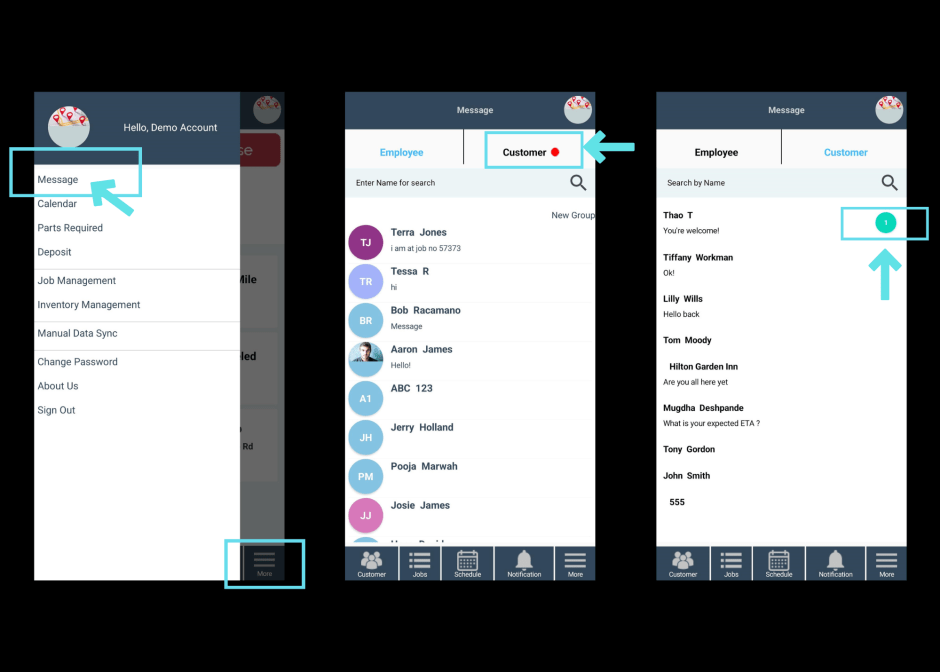
To access the message menu, tap the More button at the bottom of the home screen in the app. Next, tap the Message link in the pop-up menu that follows. From there, you’ll be taken to the messages menu, which will allow you to view and send messages to other employees and customers. The red dot next to your tabbed columns will indicate that there is a new message to be viewed.
The messages will also send a notification to your mobile device (if allowed on your device)
Job Edit Menu
You can also send a message directly to the customer within the job edit menu. Simply open up an existing job and tap the chat bubble next to the customer’s information. You’ll then be asked if you’d like to use personal or ServiceWorks messaging. Select ServiceWorks Message to continue and message your customers.

Need More Assistance?
Contact us:
Use the chat bubble on our site here
Email: support@service.works
Phone: 636-220-4363 Ext #1
